Frequently Asked Questions
General
Do I need to install anything?
No. LaSuite Meet works entirely in your browser. No plugin, extension, or app download is required. You need a modern browser (Chrome, Firefox, Safari, Edge) with camera and microphone access.
Do I need an account to join a meeting?
It depends on how your instance is configured. Some instances allow anonymous access. Others require authentication (via OIDC/SSO). The meeting invitation link will redirect you to login if required.
How many people can join a meeting?
Meet is designed for large meetings and is tested in production with 100+ participants. There is no hard cap built into Meet itself. The practical limit depends on your LiveKit server's resources.
Is there a time limit on meetings?
No. Meetings run until all participants leave or the owner ends the meeting.
What happens when I close the browser tab?
You leave the meeting. Other participants see your tile disappear. The meeting continues for everyone else.
Does Meet work on mobile?
Yes. Open the meeting link in your mobile browser. Chrome works on Android, Safari on iOS. There is no app to install. Use headphones for the best audio.
Which browsers are supported?
Chrome, Firefox, Safari, and Edge, all kept up to date. WebRTC is required and ships with every modern browser.
Audio & Video
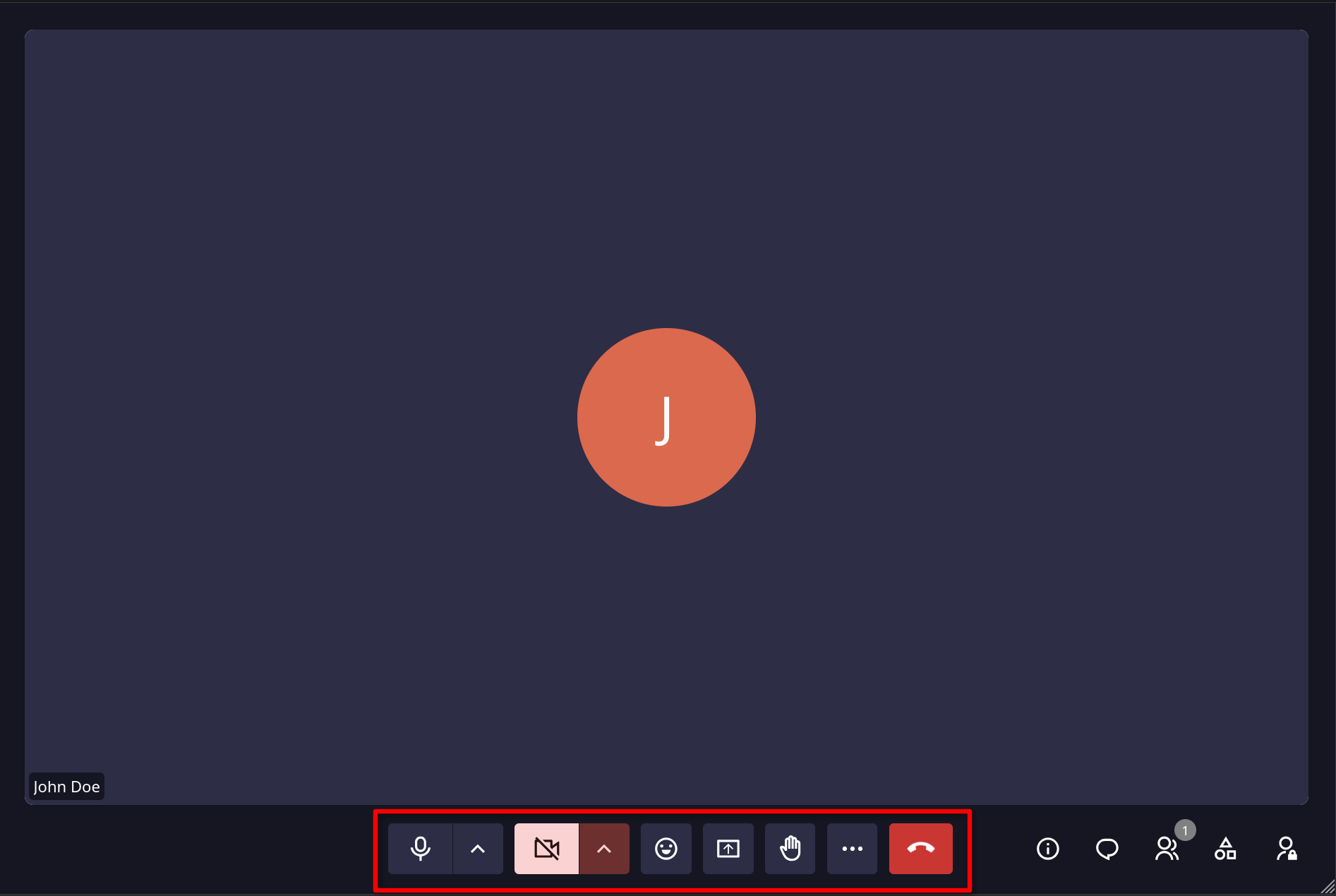
My microphone/camera is not working
- Check that your browser has permission to access them - look for the camera icon in the address bar
- Go to Settings → Audio (for microphone) or Settings → Video (for camera) and verify the correct device is selected in the dropdown
- Try refreshing the page
- Check if another application is exclusively using the device
My audio echoes
This usually happens when your speakers are picked up by your microphone. Use headphones, or enable noise suppression in your audio settings.
Other participants sound choppy or are cutting out
This is usually a network issue. Try:
- Moving closer to your Wi-Fi router
- Closing other bandwidth-heavy tabs or apps
- Asking the choppy participant to check their connection
I can see other participants but they can't see me
Your camera may be blocked by the browser. Click the camera icon in the address bar and allow access. Also verify your camera is not in use by another application.
Screen sharing
My screen share option is greyed out
On some systems (especially macOS), you must grant screen recording permission to your browser in System Settings → Privacy & Security → Screen Recording.
Can multiple people share their screen at the same time?
Yes. Meet supports multiple simultaneous screen shares.
Controls
Are there keyboard shortcuts?
Yes. Press Ctrl+Shift+/ (or Cmd+Shift+/ on Mac) to bring up the full list. Common ones include Ctrl+D to toggle mute, hold V for push-to-talk, and Ctrl+E to toggle camera.
How do I react or raise my hand?
Click the emoji button in the meeting controls to send a reaction. It appears briefly for everyone. To raise your hand, click the hand icon. Your hand stays up until you lower it or a host acknowledges you.
Recording & Transcription
How do I know if the meeting is being recorded?
A red recording indicator is visible in the interface for all participants when recording is active.
Where do recordings go?
Recordings are stored on the server and a download link is sent to the room owner. The storage location depends on the instance configuration (S3-compatible storage such as Garage, MinIO, AWS S3, etc.).
Why don't I see the recording/transcription buttons?
These features require additional server-side configuration (LiveKit Egress for recording, Summary service for transcription). Contact your instance administrator if you believe these should be available.
How long are recordings kept?
This depends on your instance's storage policy. Contact your administrator.
Security & Privacy
Are meetings encrypted?
All media is encrypted in transit using DTLS-SRTP (WebRTC standard). End-to-end encryption (where even the server cannot decrypt) is in development.
Is chat history stored?
No. Chat messages are non-persistent and are cleared when the meeting ends.
Who can access my recordings?
The room owner. Instance administrators may also have access depending on the deployment. No third party has access to recordings on self-hosted instances.
Can someone join without being invited?
If the room is set to Open, anyone with the URL can join. Set access to Restricted to require admission for all participants, or Open to trusted people to require admission only for unauthenticated users.
What is the lobby and why am I stuck there?
The lobby is a waiting area. If the room owner has enabled it, new participants wait there until admitted. If you are stuck, the room owner or a moderator needs to approve your entry. If you are the room owner, look for a notification about waiting participants at the top of the sidebar.
Self-hosting
Can I run my own instance?
Yes. Meet is fully self-hostable. See the Self-Hosting section.
Is LiveKit required?
Yes. LiveKit is the media server that powers all real-time audio/video. You need to run your own LiveKit server alongside Meet.
Can I use an external OIDC provider?
Yes. Any standards-compliant OIDC provider works: Keycloak, Authentik, Dex, Auth0, Okta, Google Workspace, Microsoft Entra, and others.
Contributing
How can I contribute?
See the Contributing section. We welcome code contributions, translations, documentation improvements, and bug reports.
How do I report a bug?
Open an issue on GitHub.